

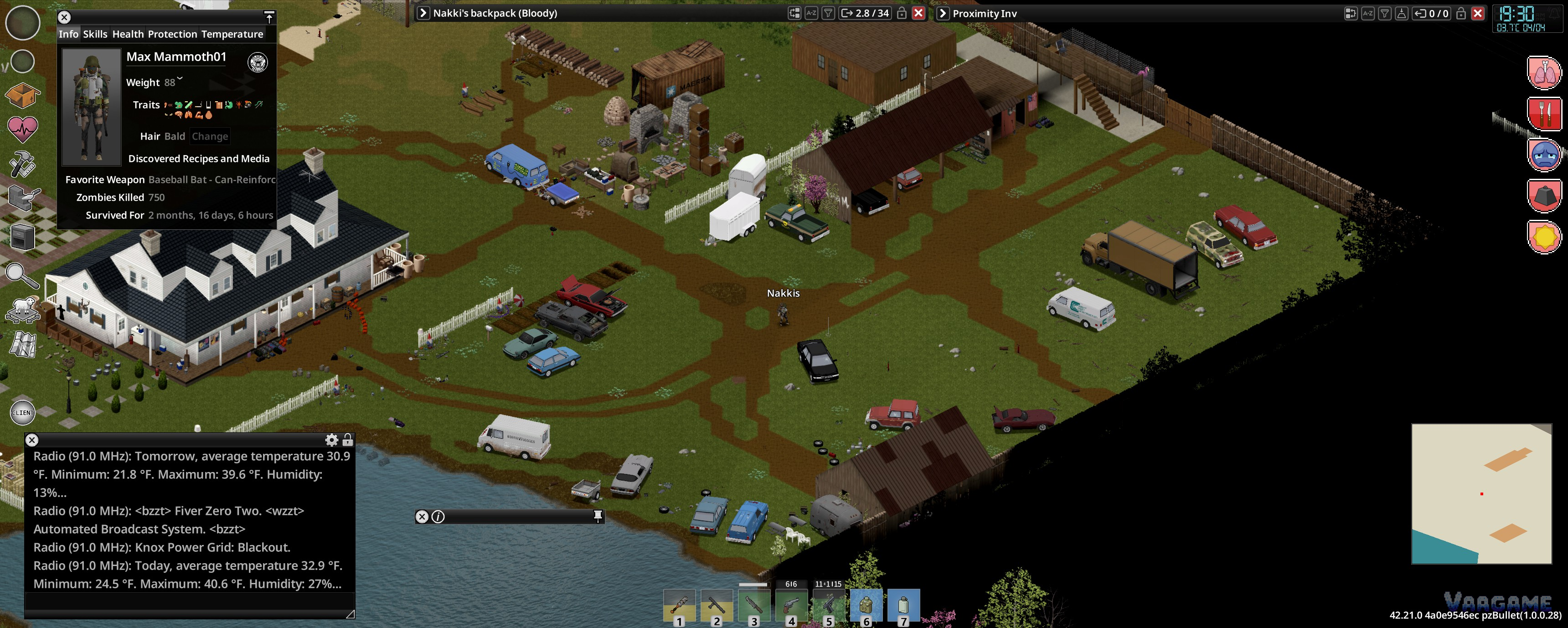
Installing a mod in Build 42 is a two-part job: Steam Workshop delivers the files, and the game's own Mods menu decides whether they load. Almost every "my mod does not work" report comes from finishing only the first half. This guide walks the full flow, then the rules that matter once your list grows: adding mods to a save you care about, load order, and the order to try fixes in when something throws errors.
Applies to: Build 42.21, current stable
Platform: Steam Workshop (PC)
Cost: mods are free
Time: about five minutes for your first mod
Step by step: your first mod
1. Subscribe on the Steam Workshop
Open the mod's Workshop page in Steam or a browser and press Subscribe. Steam downloads the item into your Workshop content folder for the game (AppID 108600). Let the download finish completely before you judge anything; a half-downloaded mod fails in ways that look like compatibility problems. Everything in the Workshop is free, and subscribing is also how updates reach you later.
2. Enable it in the Mods menu
Launch the game and open Mods from the main menu. Your subscribed items are listed there; enable the ones you want and leave the rest off. This enabled list is the game's standing mod list for new worlds. Disabled mods stay downloaded but never load, which is the right way to park a mod you are unsure about.
3. Start a world and confirm it took
Create a new game and check for the mod's fingerprints: many mods add a page to the sandbox options, add right-click options in game, or change a screen you know well. If the mod has settings, the sandbox options screen at world creation is where they live.
Adding mods to an existing save
The save has its own mod list, separate from the main menu's. From the main menu choose Load, select your save, open its options (the "more options" entry on the Load screen), and use Choose Mods to enable or disable mods for that save. The game shows an official warning at this point, and it is worth reading literally: "You may change which mods this savefile uses. Changing mods now may break your game. Adding or removing maps is not supported."
What happens next depends on what the mod does:
Swipe horizontally to view all columns.
| Mod type | Adding it mid-save |
|---|---|
Interface and HUD mods | Apply immediately; nothing needs to spawn |
Script and recipe mods | New recipes can appear in craft menus right away |
Loot, vehicle and zombie-distribution mods | New content only appears in map cells the save has never generated; visited areas keep their old contents |
Map and tile mods | Not supported on an existing save; start a new world |
Removing a mod that already placed items or data in the save | The risky direction; expect missing items or errors, and restore from backup if it goes wrong |
Two habits make mid-save changes boring instead of dramatic. First, copy the whole save folder somewhere safe before you touch the list. Second, change one thing at a time and load the save once to confirm, rather than adding six mods and owning six suspects.
Load order, in plain terms
When two mods change the same item, recipe or tile, the one that loads later wins. That single rule explains most ordering advice:
1. Framework libraries first. Other mods build on them, and a library that loads after its dependents helps nobody.
2. Map mods next, before content that refers to their areas.
3. Gameplay and content mods (weapons, vehicles, clothing) after that.
4. Interface and quality-of-life mods later, unless their page says otherwise.
5. Personal cosmetic tweaks last.
Build 42 also cares about declared dependencies: a mod can list requirements in its own files, and it will refuse to work if they are missing or load after it. If a mod's Workshop page names a required item, subscribe to that too and make sure it sits earlier in the order. Once a list works, screenshot it; multiplayer groups in particular will thank you when everyone's order matches.
How to tell a mod really supports Build 42
All-time subscriber counts are a trap here: the biggest Zomboid mods ever are mostly Build 41 mods. On any Workshop page, check these instead:
The Build 42 tag on the item. Necessary, not sufficient on its own.
An author statement naming a current version, such as "works with Build 42.20 stable" or a title anchored to B42.20+.
A file update since the Build 42 stable release in July 2026, or an actively maintained current-build edition.
Comments and change notes mentioning the current build, rather than "worked on unstable".
No "discontinued" label. Several once-great mods carry one now, sometimes only in the title.
Under the hood, Build 42 mods ship their files in a 42 or common folder inside the mod, while Build 41-only packages lack that structure; that is why legacy mods can show up in the browser yet fail on the current build with Lua errors or blank items.
When a mod breaks: the fix order
Work down this list instead of starting with the nuclear options:
1. Restart the game, and if Steam shows the item mid-update, restart Steam and let it finish.
2. Confirm the mod is enabled in the right place: the save's own Choose Mods list for an old world, not only the global Mods menu.
3. Read the actual error. Install errorMagnifier (Workshop ID
2896041179) and its report will name the file and the mod responsible, which turns guesswork into a single decision.
4. Remove the last mod you added and load again. Add mods in small groups so this step stays meaningful.
5. Check for a game-version requirement message. Some mods declare a minimum or maximum game version and refuse outside it; that is a different problem from a broken install.
6. After a big game patch, give authors 48 to 72 hours. Two recent examples: the 42.20.2 hotfix changed text parsing so literal percent signs in mod text need escaping, and 42.20.4 removed two Lua functions (loadstring and loadstream) that some mods used. In both cases the fix is an author update, not anything in your folders.
Swipe horizontally to view all columns.
| Symptom | Likely cause | First fix |
|---|---|---|
Mod downloaded but nothing changes in game | Not enabled, or enabled globally but not on this save | Enable it in the Mods menu, and in Choose Mods for existing saves |
Red error count or Lua errors on load | Build 41-only mod on Build 42, or a missing dependency | Read the error, check the mod's B42 evidence and its required items |
New items never appear in your base area | Distribution content only spawns in unvisited cells | Travel to a part of the map the save has never generated |
Save will not load after removing a mod | The mod had written items or data into the save | Re-enable the mod, or restore the backup copy of the save |
Mod worked yesterday, broke after a game patch | The patch changed something the mod uses | Wait for the author's update; do not hand-edit Workshop files, Steam overwrites them |
FAQ
Do mods disable anything or cost money?
Workshop mods are free, and installing them is a normal, supported part of the game. The practical risks are save-related, not account-related: a bad mod can break a save, which is why the backup habit matters.
I subscribed, so why is the mod not in my game?
Because subscribing only downloads it. The mod also has to be enabled in the Mods menu for new worlds, or in the save's Choose Mods list for a world that already exists. That second list is the one most people miss.
Can I remove a mod mid-save?
Interface mods, usually yes. The dangerous removals are mods that already added items, vehicles or world data to the save; taking them out can leave errors or missing content behind. Back up first, remove one at a time, and keep the backup until the save has run cleanly for a session.
Does any of this change for multiplayer?
The subscribe-and-enable basics are the same, but the server's own configuration decides the list, and every client has to match it. Server WorkshopItems and Mods lines are covered in our server mods guide.
Related guides
Best Build 42 Mods: the verified picks, with IDs
Server Mods Guide: the two INI lines every server runs on
Maintenance: keeping modded vehicles and weapons working