

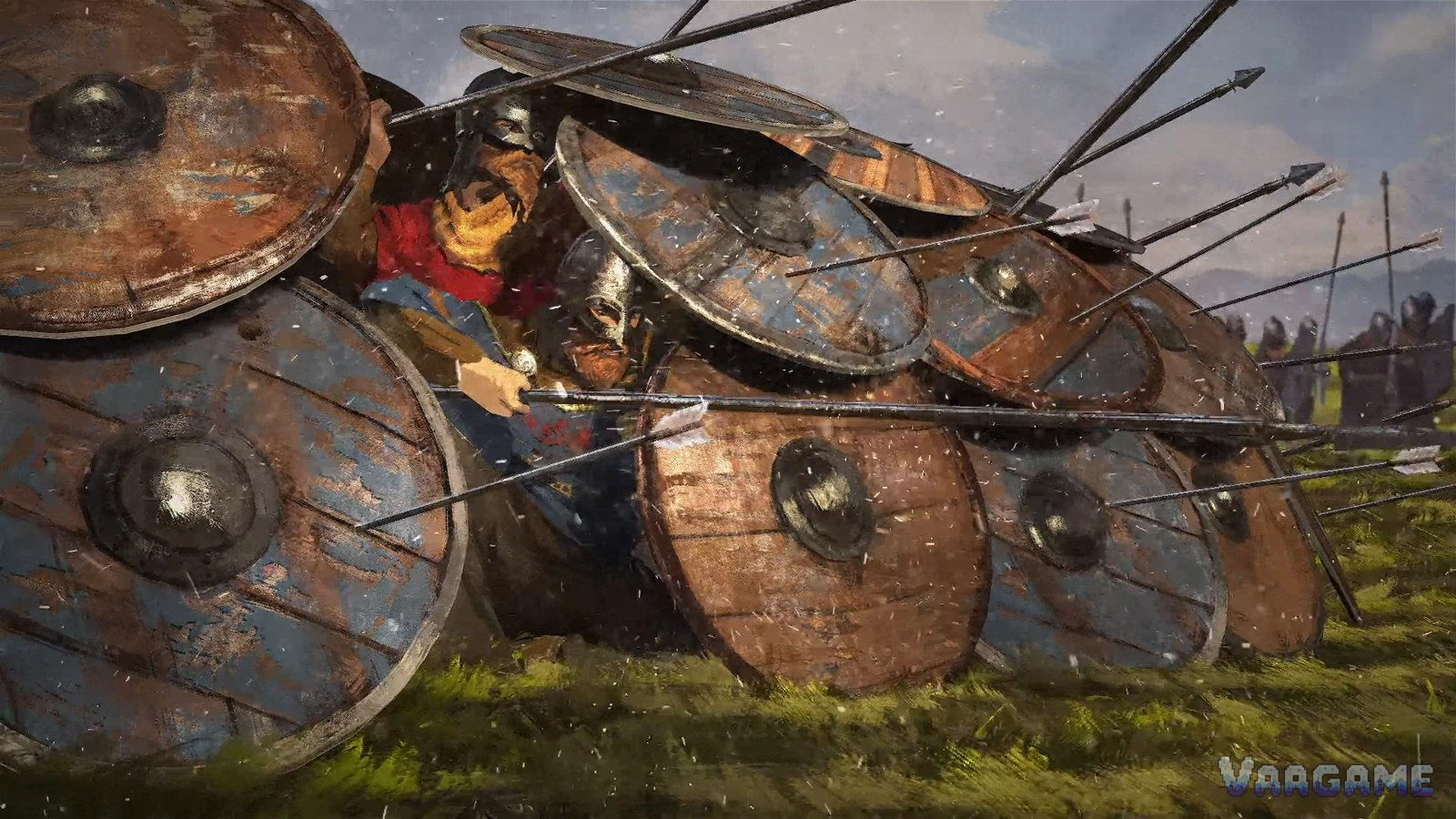
Bannerlord's performance problem is rarely your graphics card alone. The game simulates hundreds of soldiers at once, so big battles stress the CPU, the memory and the GPU together, and the setting that fixes a stuttering siege is often not the one you expect. This guide starts from the official requirements, explains what each major setting actually costs, gives three ready-made tiers for struggling, mid-range and strong PCs, and ends with the troubleshooting steps players report most often. It is PC-focused: the settings live in the Options menu, under Video and Performance.
At a glance
Official minimum: i3-8100 / Ryzen 3 1200, 6 GB RAM, GTX 660 2GB / HD 7850 2GB, 60 GB storage
Official recommended: i5-9600K / Ryzen 5 3600X, 8 GB RAM, GTX 1060 3GB / RX 580, 60 GB storage
First lever for stuttering battles: battle size, not texture quality
Presets: Very Low, Low, Medium, High, Very High, switchable from the Performance tab
Last verified: October 28, 2026
1. Find your bottleneck before you change anything
Bannerlord has two different performance problems that look identical on screen. A GPU bottleneck shows up as low frame rates everywhere, in towns, on the campaign map and in small fights, and it responds to texture, shadow and resolution changes. A CPU bottleneck shows up mainly in big battles and sieges, where the frame rate collapses as hundreds of agents fight, and it responds to battle size first and to crowd-related settings second. TaleWorlds released a benchmark scene built around a scripted two-army fight, and it reports CPU and GPU load separately, which makes it a genuinely useful diagnostic: run it before you start guessing, and change one setting at a time afterwards. Community reports agree on one diagnostic shortcut too — if a player on hardware above the recommended line still drops to 30-40 frames in big battles on medium settings, the answer is almost never a higher preset, it is a custom setup with battle size and shadow load reduced.
2. The five presets, and what they trade away
The Performance tab offers Very Low, Low, Medium, High and Very High, and you can switch between them without reloading the game. Very Low strips vegetation, textures and lighting effects to the bare minimum; Low brings trees and terrain detail back but stays light on shadows; Medium adds the shadows that give the world depth; High polishes lighting and detail further; Very High adds more accurate lighting and shadow effects plus finer character, foliage and environment detail. For a struggling PC, do not start at Very Low and climb: start at Medium, then cut the specific settings in section 3, because a blanket Very Low also removes the visual information — shadows and foliage — that helps you read a battlefield.
3. What each major setting costs
Battle size (Performance / Gameplay): the single biggest CPU lever — it caps how many soldiers fight at once, and reinforcements arrive in waves beyond it
Shadow quality and shadow type: expensive on both CPU and GPU, and the first graphics cut when battles stutter
Texture quality: mostly VRAM — safe to keep at Medium if your card has the memory, painful only when VRAM runs out
Character, environment and foliage detail: crowd and scenery density — noticeable in towns and forests, cheaper than shadows
Particles, cloth simulation and screen-space reflections: atmosphere extras — turn off first when you need frames without losing readability
Depth of field, motion blur, bloom and film grain: post-processing flavour — off costs nothing in gameplay information
Number of ragdolls and corpses on the field: community-reported freeze fix — low values help weaker cards that choke on battlefield clutter
Resolution scale, frame limiter and V-Sync (Video tab): resolution scale is the bluntest GPU lever; a 60 frame limiter steadies a PC that spikes between smooth and stuttering
4. Three ready-made tiers
Struggling PC (at or below minimum): preset Low or a Medium base with shadows Low, particles Low, foliage Low, reflections off, cloth off, motion blur and depth of field off, ragdolls low, battle size reduced until big battles hold steady
Mid-range PC (around recommended): preset High with textures High, shadows Medium, battle size at the default or one step down, reflections off, cloth on only if frames allow
Strong PC (well above recommended): preset Very High, then reduce battle size only if siege frame rates still fall — at this tier the CPU, not the GPU, is usually the remaining limit
No frame-rate number is promised here, deliberately: frame rates depend on battle size, army composition and map, and a number measured in one battle does not transfer to the next. The tiers above are starting points to test from, not guarantees, and the benchmark scene is the way to compare them on your own machine.
5. Troubleshooting: the fixes players report most
Freezes on battle loading screens: lower battle size, reduce corpses and ragdolls, and cap the frame rate — community reports link this combination to weaker cards choking on battlefield clutter
Stutter only in sieges: cut battle size first, shadows second; sieges concentrate the most agents in the smallest space
Stutter everywhere including towns: suspect the GPU side — lower resolution scale and texture quality, and check that the game is on an SSD
After a patch, settings behaving oddly: presets are switchable on the fly, so reset to a known preset and re-apply your custom cuts one by one
6. Comfort settings worth changing on day one
Beyond graphics, three options matter for a new campaign. Difficulty and related campaign settings can be adjusted from the options at any time, so there is no need to pick a punishing setting before you understand combat. Language and subtitles are set in the same menu, and the game offers Simplified Chinese interface and subtitles. Controls can be remapped, which matters more than it sounds: directional combat lives or dies on keys and mouse buttons that feel natural to you, and the defaults are a starting point, not a verdict.
FAQ
Does lowering battle size make battles easier or harder? It changes pacing, not balance in a simple direction: fewer soldiers fight at once and the rest arrive as reinforcements, so large armies take longer to resolve and your own skill matters more per wave. It is a performance setting first, and a gameplay change second.
Should I just use Very Low and be done with it? Only if nothing else works. Very Low removes shadows and foliage that help you read terrain and troop positions, so a targeted Medium-based custom setup usually plays better and looks better than a blanket Very Low.
Is the game still badly optimised years after release? Player reports from 2025 still describe big-battle drops on hardware above the recommended line, so treat large battles as the demanding case and set battle size accordingly, rather than expecting the recommended line to mean maximum settings.
Related guides
Mount & Blade II: Bannerlord Beginner's Guide: Campaign, Clan Tiers, Wages and Your First Hours
Bannerlord Early Money Guide: Looters, Tournaments and Your First Party
Bannerlord Trade, Workshops and Caravans Guide: Rumours, Inputs and Companions
Bannerlord Combat, Troops and Formations Guide: Win Field Battles Before They Start
Bannerlord Siege Attack and Defense Guide: Engines, Breaches and Holding the Walls
Bannerlord Smithing Guide: Make Money and Craft Weapons That Sell
Bannerlord Family, Companions and Marriage Guide: Build a Clan That Outlives You
Bannerlord Kingdoms, Fiefs and Influence: How Votes, Policies and Clan Tier Work
Bannerlord War Sails Naval Guide: Ships, Sea Battles and the Nords
Bannerlord Mods Guide: How to Install Mods and the Best Mods to Start With
Next: the beginners guide covers the campaign systems these settings serve, and the early-money guide explains how to afford the army your settings are rendering.