

Two developers touch the same Unity scene, Git merges, and the scene will not open, or opens with something silently gone. This is not one studio disaster story. It is the most ordinary version-control failure in Unity development, and it is documented, explained, and mostly preventable.
At a glance
The sources: Unity 6000.6 docs, Smart merge; Unity 6000.3 docs, Editor project settings reference; Game Developer, The complete guide to Unity and Git, updated August 17, 2026.
The framing: a common documented workflow problem, not a single named shipped-game incident. No studio or game is named as having lost work.
The root cause in one line: a scene file is one YAML document describing every object, and plain Git merges lines, not objects.
The fix in one line: Force Text, Visible Meta Files, and UnityYAMLMerge as the Git merge tool, with the merged scene opened in Unity before commit.
Version note: tool paths checked against Unity 6000.6 docs on October 29,
2026. Older guides show outdated paths; do not copy them blindly.
Last verified: October 29, 2026.
The conflict every Unity team meets sooner or later
The Game Developer guide walks through the scene every Unity developer recognizes. You merge a feature branch, Git prints auto-merging for a scene file, then conflict, then automatic merge failed, and tells you to fix the conflict and commit. In the guide example the file is GameOver.unity, but the shape of the failure is what matters: two branches changed the same scene, and Git is suddenly out of its depth. The guide then runs git mergetool, and the tool that answers is Unity's own Smart Merge, UnityYAMLMerge. That two-step shape is the whole story of this article.
The root cause sits one level below the conflict message. A Unity scene file is one YAML document listing every GameObject, component, and reference between them. When two people edit different objects in the same scene, Git still sees one file with changes in overlapping lines, so it reports a conflict even though nobody edited the same object. Worse, a plain text merge has no idea what a scene is: it can splice YAML blocks together in ways that look merged yet break object references, because it never checks whether the result is a valid scene. And if the project was never set to Force Text, it is worse still: the Game Developer guide puts it bluntly, that changes to a binary file can never be automatically merged and will always conflict. That is why the fix starts in project settings.
What Smart Merge actually understands
Unity 6000.6 documentation describes UnityYAMLMerge as a tool that merges scene, prefab, and meta files in a semantically correct way. That phrase is the key: where Git sees lines, the tool sees objects, so changes to different objects can be combined instead of conflicting. The docs are equally clear about the limit: for files it does not handle, and conflicts it cannot resolve, it hands off to fallback tools listed in mergespecfile.txt, and with the premerge option it merges everything it can first, then opens the fallback tool with only the remaining conflicts. By default it does not merge other YAML files such as material, asset, or controller files; those go to a fallback tool unless forced. So Smart Merge is not magic that ends all conflicts: it understands scene structure, resolves the easy majority, and steps aside for the rest.
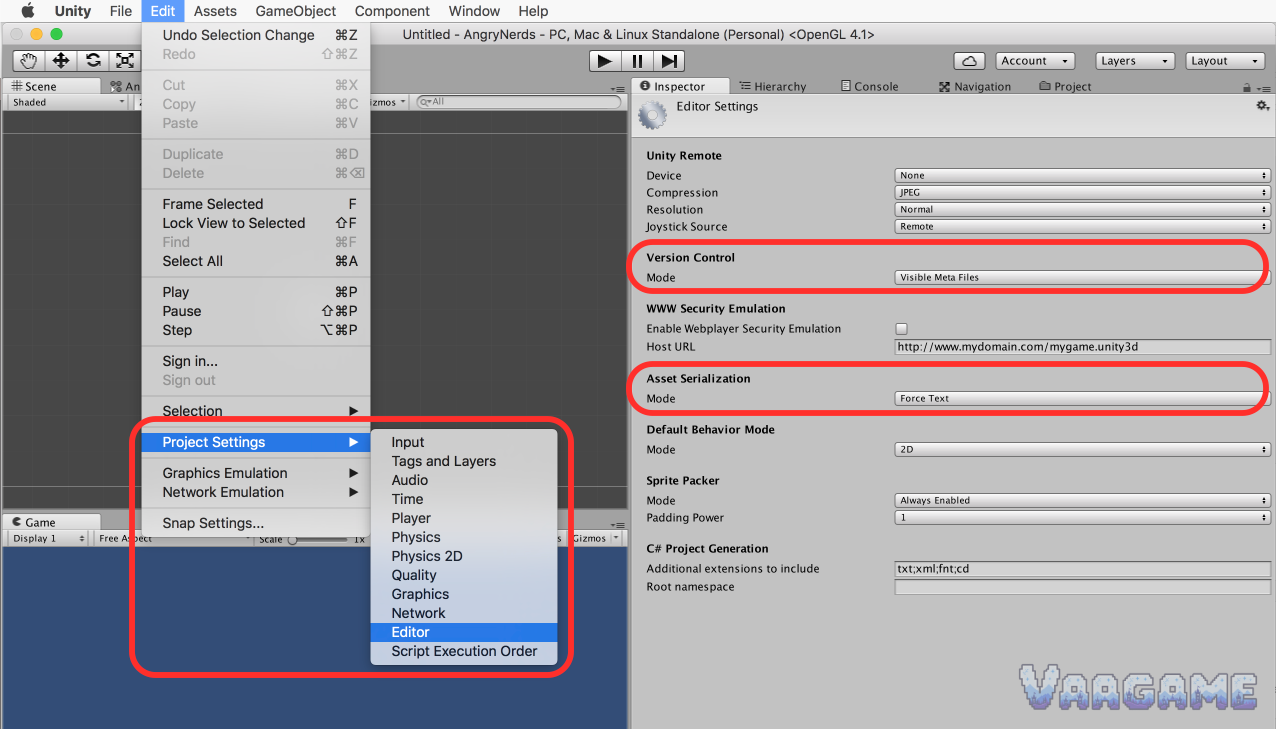
Setup has two halves. First, the project: in Edit, Project Settings, Editor, set Version Control mode to Visible Meta Files so meta files are written as normal files, and Asset Serialization mode to Force Text so scenes and prefabs are stored as YAML. The Unity 6000.3 Editor settings reference says Force Text is the default, and offers a reduce version control noise option that writes YAML references on one line, because scene saves can rewrite more lines than you touched. The Game Developer guide adds the team reason: the settings live in ProjectSettings and travel with the repository. Second, Git: add UnityYAMLMerge as the merge tool in your repository config or global gitconfig, with trustExitCode false and the merge command passing base, remote, local, and merged files. One warning: the Game Developer guide old tool path, inside a Contents Tools folder, is outdated. The Unity 6000.6 docs put the tool under the Unity Hub Editor install: Editor Data Tools on Windows and Linux, the Unity app Helpers folder on macOS. Copy the path from your own installed Editor version, not from an old blog post.
What to reuse
Everything below applies to your own project and repository only, and touches no live service, shared server, or anyone else's work. The most important step is also the least glamorous: after a merge, open the scene in Unity before you commit. The Game Developer guide warns that Git sometimes reports a file as unchanged when the conflicts were actually resolved. Its test is exactly this: open the conflicted file in Unity; if it still contains conflict markers it will fail to open, and if it opens, check the Inspector for both sides' new values. A merged scene is not done when Git says so. It is done when the Editor opens it and both changes are visible.
What to do Monday morning
In your own project only, open Edit, Project Settings, Editor, and set Version Control mode to Visible Meta Files and Asset Serialization mode to Force Text. Save and commit so the whole team inherits it.
Point Git at the UnityYAMLMerge inside your own installed Editor version, using the Unity 6000.6 paths, not an old post's path. Add the merge tool block to your repository config, with trustExitCode false and the merge command passing base, remote, local, and merged files.
Rehearse on a throwaway branch in your own repository: change two different objects in one scene on two branches, merge, run git mergetool, and confirm both changes survive.
After every scene merge, open the scene in Unity before committing, check the Inspector for both sides' new values, and run a short Play Mode smoke test.
If Git reports the file as unchanged after mergetool, do not trust that alone: a file that still contains conflict markers will fail to open in Unity, so the open-in-Unity step is the verdict, not the Git status.
Shrink future conflicts at the source: keep scenes small, split shared content into prefabs, and avoid two people editing the same scene at the same time.