

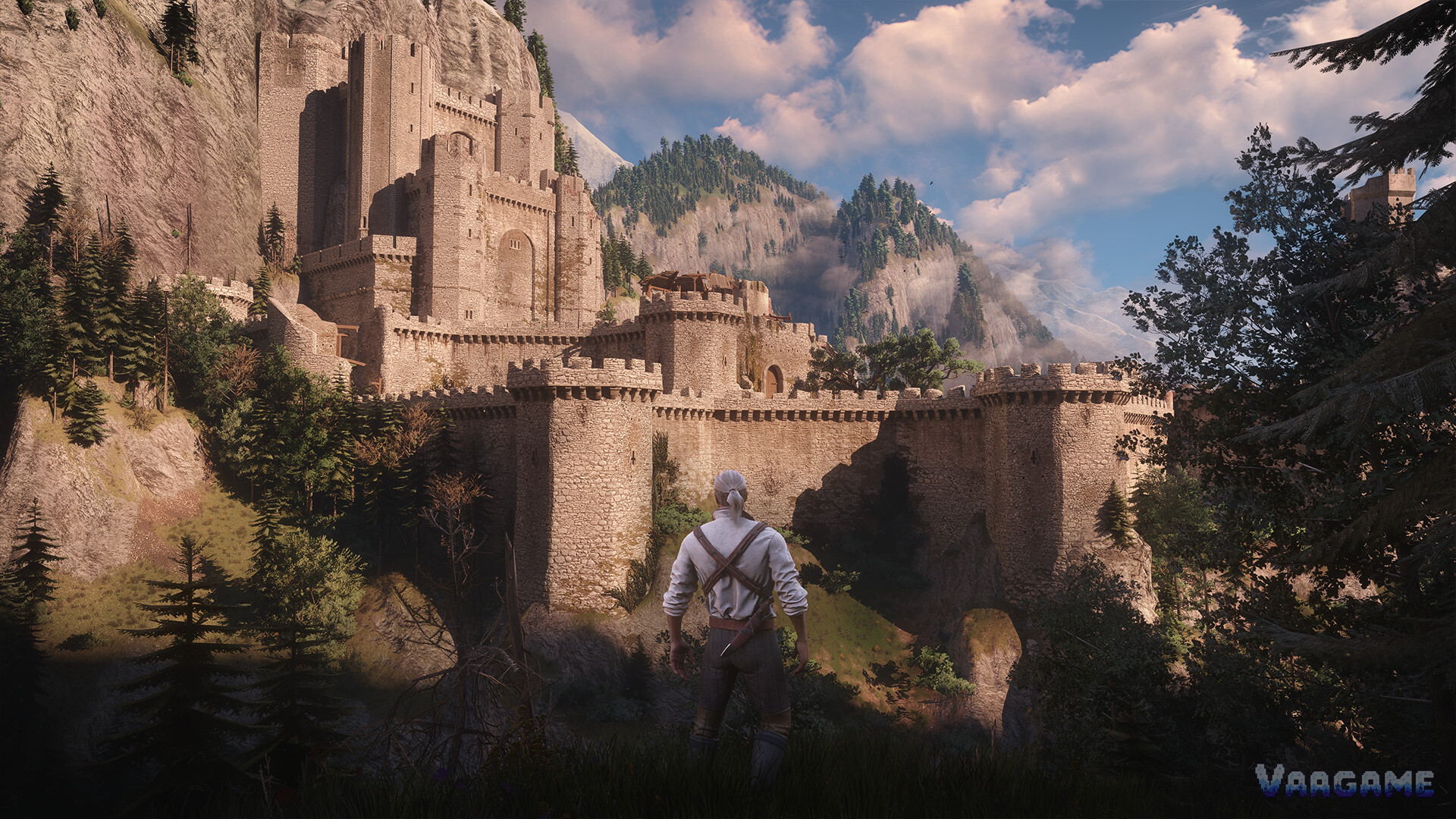
The Remastered gives you three ways to install mods, and they do not behave the same. The in-game mod.io browser works on every platform but only shows a curated subset. The Steam Workshop is PC only and can quietly reinstall old mods that break the new version. Nexus Mods with a manager is PC only and gives you the full library, but also the full responsibility for conflicts. This guide covers all three routes, the merge step that holds a script stack together, and the uninstall discipline that keeps your saves clean.
Quick answer
Console players: use only the in-game mod.io browser. Nexus, Workshop and manual installs are PC only.
PC players: mod.io for convenience, Nexus plus a manager for the full library, Workshop only if you check your subscription list first.
Turn on Enable mods in Options, then Gameplay after any manual or manager install.
Run Script Merger after installing script mods, and delete old merged files before rebuilding a merge.
Keep one clean, unmodded save. A modded save gets a gear icon and can lose trophy and achievement eligibility.
At a glance
Game: The Witcher 3: Wild Hunt — Remastered (Steam app 292030)
Version scope: patch 5.0 and 5.01 (Remastered)
Routes: in-game mod.io (all platforms), Steam Workshop (PC), Nexus and manual (PC)
Tools: Script Merger — Fresh and Automated Edition, Script Merger - Remastered, Vortex, Mod Manager Redux
Last verified: October 27, 2026
1. Route one: the in-game mod.io browser (every platform)
Open the main menu and choose Mods. Log in with a CD PROJEKT RED account, creating one first if you do not have it, and connect that account to mod.io when the game asks. Browse the mods, subscribe to the ones you want from the same menu, then check the Installed tab, make sure each mod you want is ticked, and restart the game so the mods load. That restart matters: subscriptions do not take effect until the game reloads with them.
Consoles only show the mods marked as available on consoles, a smaller set than on PC, and you cannot copy PC mod files from Nexus Mods onto a PlayStation 5, Xbox Series X or S, or Switch
2. If a mod from our best-mods list is not in the in-game browser, that is why: it was never uploaded to mod.io or never marked for consoles. For console players this route is the whole story, and the rest of this guide is PC-only context.
2. Route two: Steam Workshop (PC, with a trap)
Workshop installs are the easiest PC route after mod.io: subscribe on the Workshop page and the files arrive on their own. The trap is what happens on a fresh Remastered install. If you subscribed to mods under an older version, Steam reinstalls those subscriptions automatically when you install 5.0, and the old scripts then fail compilation at launch. Reported errors look like syntax errors in inventorycomponent.ws and r4player.ws, and they appear even if you have not installed any mod this time around.
Before you launch 5.0 for the first time, open the Workshop page and unsubscribe from anything that is not confirmed for 5.0. If the game already fails to compile, unsubscribe from the Workshop list, delete the mods folder inside the game folder, and verify the integrity of game files in Steam settings. Do not reinstall old subscriptions hoping they will work; a mod without a 5.0 note is unverified until its author says otherwise.
3. Route three: Nexus Mods, manual install, or a manager (PC)
For a manual install, open the game folder, the one that holds bin, content and dlc. On Steam, right-click the game, then Manage, then Browse local files. Create a folder named mods there if it is missing, extract the mod archive, and copy its folder, whose name usually starts with mod, into mods, for example The Witcher 3, mods, modExample. Follow the mod's own instructions for any files that go somewhere else, such as a bin folder that must be merged into the game's bin folder.
A manager saves the copying. With Vortex, install the downloaded zip as a normal Witcher 3 mod and it deploys the mods folder as-is. With Mod Manager Redux, point it at bin, x64, witcher3.exe for DirectX 11 or bin, x64_dx12, witcher3.exe for DirectX 12, then drag each downloaded archive in. Whichever route you take, finish in the game: go to Options, then Gameplay, and turn on Enable mods, the 5.0 option that gates local mods.
4. Script Merger: the step that holds a script stack together
When several script mods change the same game scripts, the game cannot use all of them at once, and that is what Script Merger is for. For current versions, use Script Merger — Fresh and Automated Edition, which scans your installed mods for conflicting scripts and builds merged versions where the changes are compatible. Script Merger - Remastered also appears in Nexus recent updates. Run the scan after installing, merge what it can merge, and read what it cannot: some conflicts still need you to choose, and some mod authors tell you not to merge specific files at all.
Rebuilding matters as much as building. Deleting mod0000_MergedFiles removes previously generated merges, which lets you rebuild merged scripts from only the mods you still have installed. Never keep an old pre-built merge alongside a newly generated one: duplicate scripts create additional compilation conflicts. If you remove a script mod, rebuild the merge before launching, and if you update a script mod, rebuild again.
5. Priority: mods.settings and folder names
When priority decides, it lives in Documents, The Witcher 3, mods.settings, a file a mod manager creates or one you can create by hand as a plain text file named mods.settings. The Slots Slots Slots page gives the working example: give Slots priority over Smooth UI Remastered by setting Priority=0 in its section, otherwise the other mod's skills screen replaces the Slots screen and the page indicator disappears. The same file is where you settle any other bundle priority dispute.
For bundle files, the folder name is the other lever: when two mods ship the same file, the mod folder that sorts first alphabetically should win, so renaming a folder with a mod0 prefix prefers it. One caution from the Ink and Iron page itself: that alphabetical convention is stated as a Witcher 3 convention not verified on 5.0, so treat it as a working rule to test, not a guarantee, and confirm the result in game after renaming.
6. Uninstall and clean-save discipline
Uninstall in the mod's own order, not by deleting folders first. The Slots Slots Slots page shows the pattern: enable its uninstall option in the mod menu, close the menu, open the skills screen and accept the return of your skills and mutagens, save the game, and only then remove the mod folders. Skill points the mod gave you are kept, and if you load a cleaned save with the mod still installed, it reactivates automatically, so the order matters.
The cheapest insurance in modding is a clean save. A save that uses mods gets a gear icon and can have trophies and achievements turned off, so keep one unmodded save from before your first mod if you care about the 78 achievements. Test every new mod on a copy of your save first, and test every stack change the same way: new mod, updated mod, reordered mod, removed mod. A stack that loads is not a stack that is safe; play an hour before you call it stable.
7. Troubleshooting: symptom, cause, fix
Swipe horizontally to view all columns.
| Symptom | Likely cause | Fix |
|---|---|---|
Script compilation error at launch | Old Workshop subscriptions reinstalled, or an un-updated script mod | Unsubscribe old Workshop mods, delete the mods folder, verify game files, rebuild merges |
A mod's changes silently missing | Another mod with higher priority overwrote the same files, or a bundle conflict | Check mods.settings priority, run one UI overhaul only, confirm in game |
Wrong values on NPCs, or a boss dying in one hit | An overhaul's files were overridden by another mod | Restore the overhaul's priority, or drop the conflicting mod |
Menus show raw keys or blank text | UI or HUD installed without its Fonts module | Install the Fonts module, or the vanilla-font variant, and retest |
Crash after updating a mod | Stale merged files from the older version | Delete mod0000_MergedFiles, rebuild the merge, test on a save copy |
FAQ
Do I need Vortex or Mod Manager Redux to use Nexus mods?
No. Manual installation works: copy the mod folder into the game's mods folder and turn on Enable mods in Options, then Gameplay. A manager saves copying and helps with priority, but it does not resolve conflicts for you; Script Merger still does that job.
Can I mix mod.io mods with Nexus mods?
Yes on PC, with care: the in-game browser and the mods folder are separate install paths, but the game loads both, so a mod.io mod and a Nexus mod that change the same thing still conflict. Treat the combined set as one stack: one UI overhaul, one merge pass, one test save.
Where do my saves live, and what should I back up?
Back up your save files and your user settings before any stack change, and keep one clean save from before your first mod. The habit matters more than the path: copy first, mod second, every time.
The game updated and my mods broke. What first?
Check each mod's page for an update for the new version, drop anything without one, delete old merged files, rebuild the merge, and test on a save copy. Do not reinstall old subscriptions hoping they work; an update is the only signal that counts.