

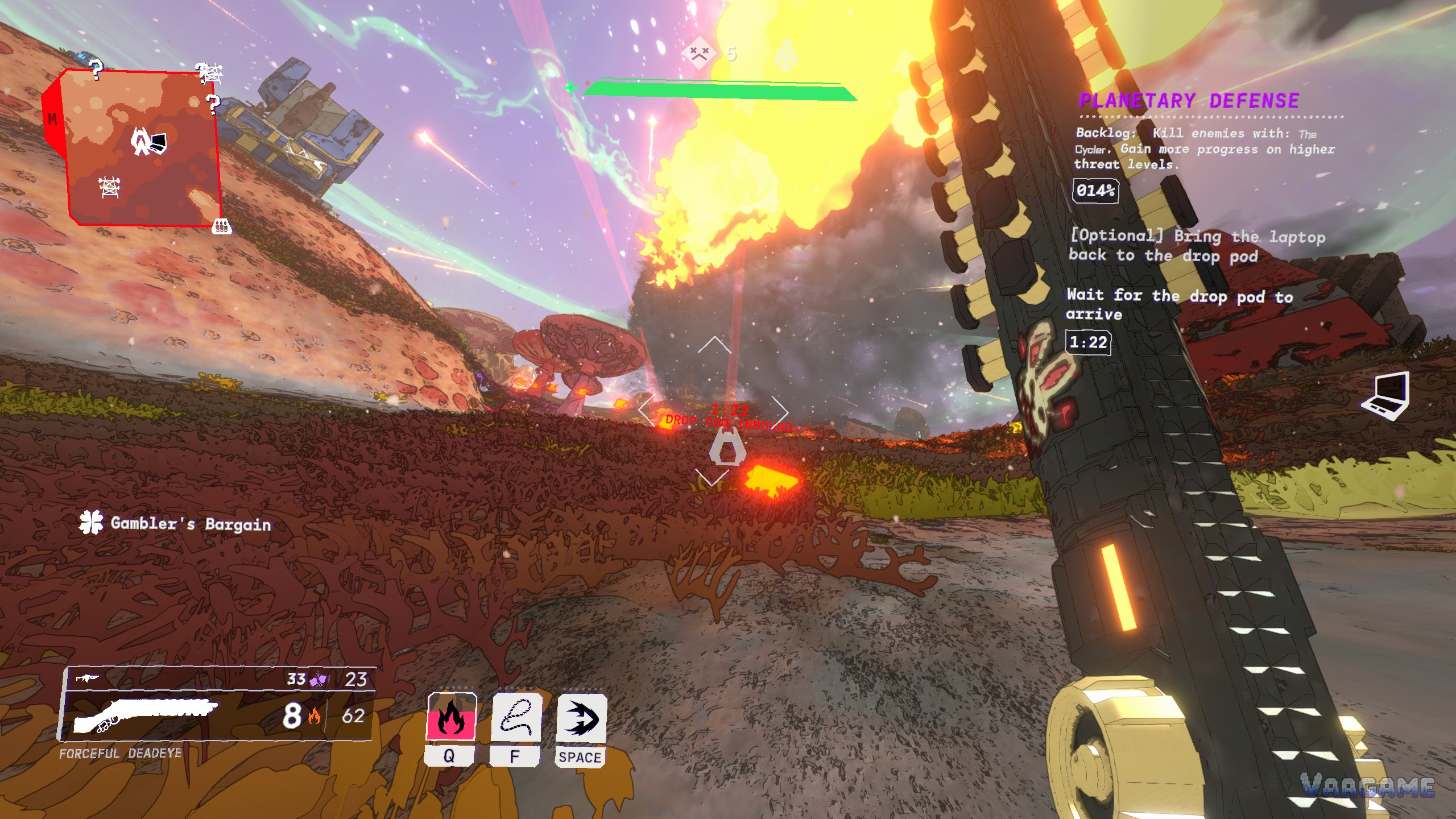
Mycopunk on Windows PC has two official anchors and not much else in writing: low quality at 1080p at about 30 FPS on the minimum spec, and high quality at 1080p at about 60 FPS on the recommended spec. This guide reads those two anchors honestly, separates the calm scenes from the heavy fights, and covers the crash reports players keep raising, without inventing a settings menu the store page never listed.
At a glance
Developer Pigeons at Play, publisher Devolver Digital
Full release October 20, 2026; Early Access from July 10, 2025
List price $14.99 / ¥58; current price $7.49 / ¥29 (-50%). US discount runs to November 3, 2026; for China, check the store page. Checked October 29, 2026.
Windows PC only. Single-player and online co-op, Steam achievements, full controller support, Steam Cloud and Family Sharing
About 4,800 Steam reviews, about 88% Very Positive (checked October 29, 2026); 48 achievements
Windows PC only; no Steam Deck rating is given in this guide
Last verified: October 29, 2026
1. The official specs
Swipe horizontally to view all columns.
| Item | Minimum (official) | Recommended (official) |
|---|---|---|
Operating system | Windows 10 x64 | Windows 11 x64 |
CPU | i3-610 / FX-8350 | i7-6700K / R5 1500X |
GPU | GTX 960 / R9 380 / Arc A380 | RTX 2080 / RX 5700 XT / Arc A750 |
Memory | 8GB | Not listed in the recommended spec |
DirectX / storage | DirectX 12, 10GB | DirectX 12, 10GB |
Official performance note | Low quality, 1080p, about 30 FPS | High quality, 1080p, about 60 FPS |
Two things about this table deserve a second look. First, the recommended column has no memory figure, so no memory number in this guide is presented as an official recommendation. Second, the performance notes are tied to 1080p: they say nothing directly about higher resolutions, and this guide does not extrapolate a frame rate for them.
2. Reading the two quality anchors
Low quality and high quality are the only two quality points the store page names. There is no published medium or ultra anchor in the official spec, so this guide does not invent one or attach a frame rate to it. The practical way to use the two anchors is as a bracket: if your PC is close to the minimum spec, start at the low end and treat smooth play as the goal; if it is close to the recommended spec, start at the high end and only step down when a fight stutters.
If you are between the two specs, start in the middle of what the game offers and judge by the heaviest fight you have seen, not by the hub. Hub rooms and menu screens are calm scenes and will flatter any setting; a dense Planetary Defense fight with explosions and a drop-pod timer is the honest test.
3. Where the load actually comes from
Mycopunk fights get busy in two ways at once: lots of enemies on screen, and lots of effects around them. A bubble shield covering a whole group, a ring-shaped enemy firing across a field, or an Ouroboros room full of fungal ground and creatures all push the same direction, and a fight that stutters is usually a fight with both at once. When you step a setting down, judge the change in that kind of fight, not in an empty room.
Upgrade and menu screens are the opposite case. The Cleanse Upgrades screen and similar panels show lists and totals, not a live battlefield, so a stutter there points elsewhere: a background program, a driver issue, or a system under strain, rather than a quality preset that is one step too high.
4. If your PC is below the minimum spec
Below the minimum spec, the honest answer is that the official anchors do not cover you, and no preset is guaranteed to fix that. The practical steps are the generic ones: run the lowest quality preset, drop the resolution if the game allows it, close background programs, and make sure Windows and your GPU driver are up to date. If the game still stutters in dense fights after that, the limit is the hardware, not a hidden setting, and no guide can tune around it.
5. Crashes and lost progress: what players report, and what helps
Crashes that lose progress are one of the recurring complaint themes in player-review analysis, alongside mission-objective bugs. This guide does not claim a single cause, because the review themes do not name one, and it does not list a save-file location or a repair trick that was not verified. The steps that are safe and general: verify the game files through Steam, keep Windows and your GPU driver current, close heavy background programs before a long session, and avoid pushing both threat level and quality up at the same time while you are still testing stability.
One more caution from the review themes: because progress can be lost to a crash, do not treat a long, high-threat session as your only copy of a good run. Play shorter sessions at a threat you have already cleared while you test, and keep expectations modest until your own PC has shown a stable run.
6. Controller, cloud and sharing notes
The store page lists full controller support, including DualShock and DualSense, plus Steam Cloud and Family Sharing. Those are platform features rather than in-game settings, so the practical advice is short: if a controller feels wrong, check the controller layout in Steam first, and remember that cloud and sharing behaviour follows your Steam account settings, not a Mycopunk menu.
FAQ
Does the low preset guarantee 30 FPS? No. The official note pairs low quality at 1080p with about 30 FPS on the minimum spec. It is an anchor for that spec, not a guarantee for every PC.
Do I need the recommended GPU to play at high quality? The high-quality 1080p anchor at about 60 FPS is paired with the recommended spec. A weaker GPU may still run the game, but it should not be expected to hold that anchor.
Is there a Steam Deck rating in this guide? No. The Deck rating was not verified, so this guide is Windows PC only and gives no Deck advice.
Can I use this guide for the PS5 version? Not as written. A PS5 version launched the same day as 1.0 according to second-hand reports, but this guide covers Windows PC only, and PS5 versus PC content differences were not verified.
Related guides
Mycopunk Beginner's Guide: First Missions, Grids, Threat Levels and Your First Hours
Mycopunk 1.0 New Content Guide: Mycologist, X11-B, Weapons and What Changed
Mycopunk Co-op and Solo Guide: Squads, Revives, Friendly Fire and Solo Threat
Next: the beginner guide covers the first missions and the grid, and the 1.0 guide covers what changed in the full release.