

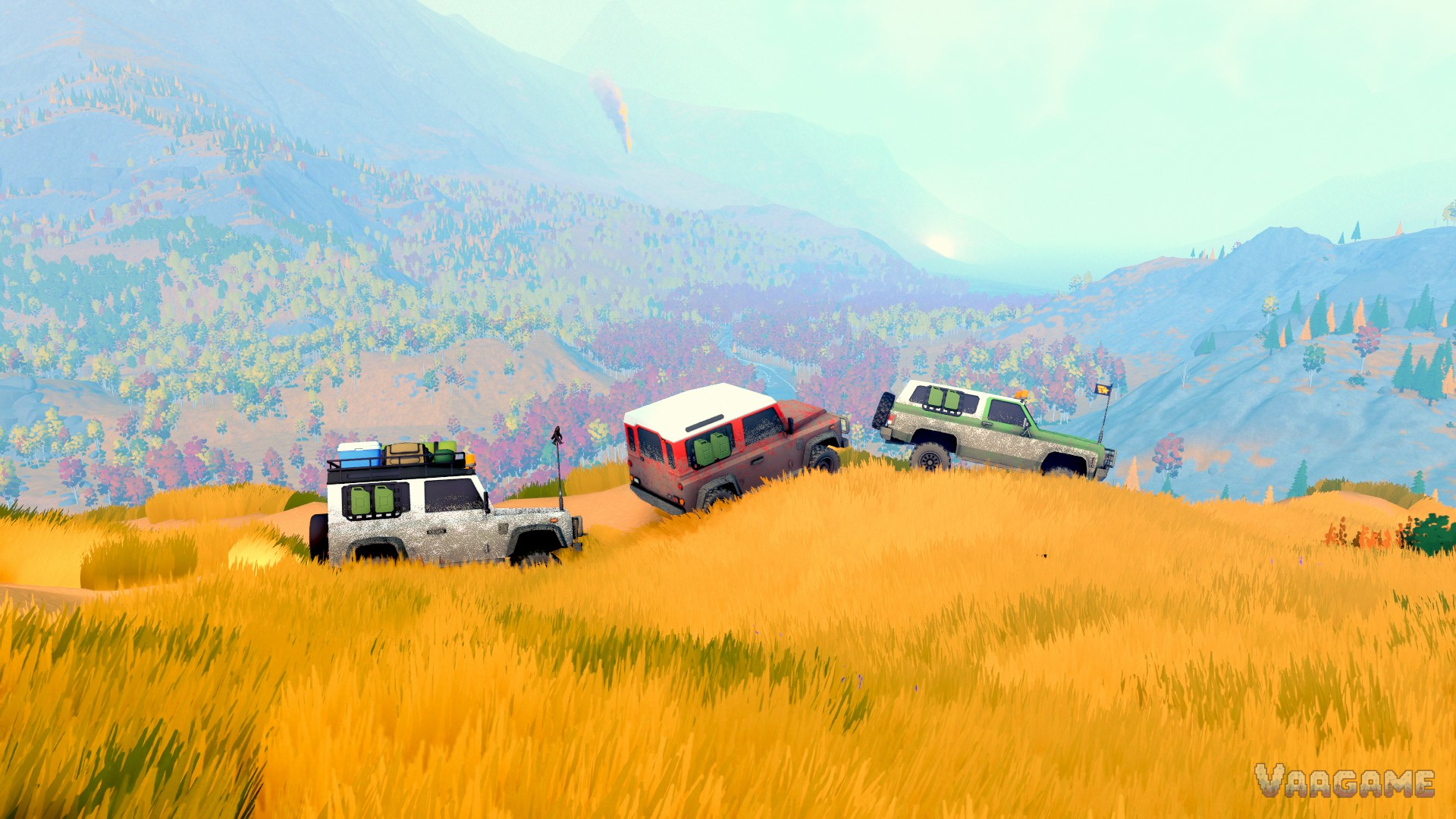
over the hill is a gentle game to run. It is a slow off-road explorer from Funselektor and Strelka Games, and a week of hands-on testing by reviewers and players points the same way: most gaming PCs can hold 60 FPS on high settings, and the Steam Deck runs it well with the right preset. This guide collects what that testing actually found — a recommended PC settings table, two Steam Deck routes (a locked 30 FPS and a smooth 40 FPS), and the short list of options that genuinely cost frames. Every performance figure below is credited to the test it came from, because one player's smooth drive is another player's hardware.
Quick answer
PC: Start on the Ultra preset — Traxion's review testing found it largely stable at 60 FPS across several PCs. On minimum-spec hardware, drop to High/Medium and lean on upscaling.
Steam Deck, stable: The Medium preset at native 1280×800 with a 30 FPS cap — the combination Traxion found stable, with dips only at the largest vistas.
Steam Deck, smoother: High preset with FSR 3 set to Quality and a 40 FPS cap, a combination player reports on ProtonDB and SteamGamer both put at a steady 40.
Lower this first: Vegetation. Player testing on ProtonDB identifies vegetation detail as the heaviest setting in the game, and it bites hardest at night with your headlights on.
Upscaling: Both FSR 3 and DLSS are built in, so every GPU has a lever when the frame rate dips.
At a glance
Game: over the hill (Funselektor Labs with Strelka Games), released 14 October 2026
Price: $24.99
Platforms: PC (Windows and Linux); Steam Deck Verified
Official minimum spec: Windows 10 64-bit, i5-7400 / Ryzen 5 2600, 8 GB RAM, GTX 1070 / RX 5600, DirectX 11 — tested by the developer at Full HD
Upscaling built in: FSR 3 and DLSS
The heavy settings: Vegetation density and distance, headlight shadows at night, volumetric light in bad weather
Settings checked: Launch build, checked 22 October 2026 against published hands-on tests
1. What actually costs frames
Three things decide your frame rate in over the hill, and the weather and time of day matter as much as the hardware.
Vegetation is the big one. The Valhallas are covered in forest, and a widely-upvoted ProtonDB report from launch week calls vegetation detail the game's heaviest setting — with a specific warning that it costs even more at night, when your headlights light the trees around you. If your frame rate sags anywhere, it will sag in a forest after dark.
Big vistas are the second cost. The game's best moments are also its widest views. On Steam Deck, Traxion found the recommended Medium preset held a stable 30 FPS everywhere except larger vistas, where it dipped. The same shape shows up on PC: Traxion's Ultra testing stayed largely at 60 FPS, with brief dips during dramatic weather rather than a constant struggle.
Night and storms stack the costs. Headlight shadows, volumetric light through rain or fog, and dense trees all peak at the same moment — a rainy night drive through the woods. That is the scene to test your settings against, and the one the fixes in section 5 are aimed at.
One more note for minimum-spec machines: the official floor is 8 GB of RAM, and at least one review (Vandal) flagged heavy RAM use. If you are at the minimum, close background apps before blaming the graphics settings.
2. Recommended PC settings
Start from the presets, because the preset picture is unusually good. Traxion tested the Ultra preset on multiple PCs and found performance largely stable at 60 FPS, with brief dips in dramatic weather. If your PC is a recent gaming build, Ultra is a legitimate default — then use the table below to trim the two or three settings that cause the known dips.
For item-by-item values, the most complete published profile is ROG Ally Life's, tested at 1080p on ROG Ally hardware: a full pass through the graphics menu that averaged over 45 FPS with FSR 3 on Balanced, and over 30 FPS even at native resolution with upscaling off. The menu and options are identical on desktop; the table follows that profile, adjusted where desktop hardware gives you more headroom.
Upscaling method — FSR 3, or DLSS on Nvidia RTX cards — Both are built in; this is the biggest lever after the presets
Upscaling quality — Quality at 1440p and above, Balanced at 1080p — Balanced at 1080p is the tested ROG Ally Life profile's choice
Frame rate cap — 60, or your monitor's refresh rate — A cap you can hold feels smoother than an uncapped rate that swings at vistas
VSync — Off when using a frame cap — As in the tested profile; turn it on if you see tearing
Vegetation density — Medium — The heaviest setting in player testing (ProtonDB); the first place frames go
Vegetation distance — Medium — Draws the forests that fill most of the Valhallas
Shadow distance — High — Kept at High in the tested profile without breaking its frame rate
Headlight shadows — On — turn off if night driving dips — Headlights at night are a known cost spike
Volumetric light — Low — Fog and light shafts; Low in the tested profile, and weather is when dips appear
Lighting quality — High — Kept at High in the tested profile
Ambient occlusion — Medium — Medium in the tested profile
Texture quality — High — Textures mostly cost memory rather than frame rate; even Deck profiles keep them High
Terrain LOD quality — Medium — Medium in the tested profile
Tire tracks quality — High — Persistent tracks are a signature feature; kept High in the tested profile
Post processing quality — High — Kept at High in the tested profile
Effects (bloom, film grain, motion blur) — Bloom on; film grain and motion blur off — Taste, mostly — and it matches the tested profile
On stronger hardware there is a second data point: a ProtonDB report from the demo build put an RTX 3080 at 1440p, High settings, DLSS on Quality and vegetation on Medium at over 80 FPS. That was the demo rather than the launch build, so treat it as a guide to the shape of things — a modern upper-midrange card has a great deal of headroom here.
Running a minimum-spec PC (GTX 1070 / RX 5600 class)? Nobody has published a full benchmark on the exact minimum hardware yet, so work from the preset ladder: start at High with FSR 3 or DLSS on Quality, and if forests or night driving still dip, go to Medium and set vegetation to Low before touching anything else.
3. Steam Deck settings: two routes
over the hill is Steam Deck Verified, and a week of player testing has produced two sensible configurations. Pick by what you value: battery life and total stability, or a smoother picture.
Route A — Locked 30 (the safe default). Use the Medium preset at the Deck's native 1280×800 and set the frame rate cap to
30. This is the game's recommended Deck preset, and Traxion found it stable at 30 FPS with dips only at larger vistas. It is also the kindest route for battery life.
Route B — Smooth 40 (the better picture). Use the High preset with FSR 3 set to Quality and cap the frame rate at
40. A ProtonDB report on the native Deck build found this combination holds its 40 cap well, and community results logged on SteamGamer point the same way — Medium at native resolution was logged at about 40 FPS, and a Low-based profile with textures kept on High and FSR 3 on Quality also reached about 40.
Preset — Medium — High
Resolution — 1280×800 (native) — 1280×800 (native)
Upscaling — Off / native — FSR 3 — Quality
Frame rate cap — 30 — 40
Expected result — Stable 30, dips only at the largest vistas — Holds 40 in most driving
Two honest footnotes. First, a SteamGamer report that dropped to 720p with a modified Low profile reached about 45 FPS but noted occasional microstutter on both Deck models — a higher number that feels worse than Route B's capped
40. Second, a few ProtonDB reports mention that some in-game text is small on the Deck screen; no graphics setting changes that, so it is worth knowing before you buy the game for handheld play alone.
4. Upscaling and frame caps, briefly
Both upscalers are in the game's own menu — FSR 3 for any GPU, DLSS for Nvidia RTX cards — each with the usual quality ladder. Native renders every pixel; Quality is the gentle step that buys back headroom at 1440p and on Deck; Balanced is the aggressive step that made 1080p work in ROG Ally Life's handheld testing. Because over the hill is a slow game with a soft, painterly look, upscaling artefacts are far less visible here than in a fast shooter — if you need frames, this is the cheapest place to get them.
The frame rate cap is the other half of the setup. The game's frame rate naturally rises on open straights and dips at vistas, forests and storms. Capping at a number your hardware can hold almost everywhere — 60 on most PCs, 40 or 30 on Deck — turns those dips into a steady rhythm instead of a constant wobble.
5. Troubleshooting: symptom, first fix
Frame rate drops at night — Lower vegetation density and distance one notch; if it persists, turn headlight shadows off
Dips at big viewpoints on Steam Deck — Drop to Route A (Medium, capped at 30) — vistas are the Deck's known weak spot
Dips during storms or heavy weather on PC — Set volumetric light to Low; then shadow distance down one notch
Stutter despite a good average frame rate — Cap the frame rate instead of running uncapped; on 8 GB RAM systems, close background apps
Everything is slow on a minimum-spec PC — FSR 3 or DLSS on Quality first, then the Medium preset, then vegetation to Low
FAQ
Is over the hill good on Steam Deck? Yes — it is Steam Deck Verified, and player testing backs the badge. The Medium preset holds a stable 30 FPS (Traxion), and High with FSR 3 on Quality holds 40 for most driving (ProtonDB, SteamGamer). The known nits are dips at the largest vistas and some small in-game text.
What frame rate will a minimum-spec PC get? No full benchmark on the exact minimum hardware (GTX 1070 / RX
5600) has been published yet. The honest expectation, from the preset testing that does exist: start at High with upscaling on Quality, keep Medium and lower vegetation in reserve, and remember the developer tested the minimum spec at Full HD.
Does over the hill support DLSS and FSR? Both. FSR 3 appears in every tested profile so far, and DLSS is in the game as well — a ProtonDB report ran the demo at 1440p with DLSS on Quality at over 80 FPS on an RTX
3080. Between the two, every GPU has an upscaling option.
Which setting should I lower first? Vegetation density. Player testing on ProtonDB identifies vegetation as the heaviest load in the game, especially at night with headlights on. Vegetation distance is the second turn of the same dial.
Does over the hill use ray tracing? No — there are no ray tracing options in the graphics menu. The settings that cost frames are the conventional ones: vegetation, shadows, volumetric light and upscaling. Claims otherwise come from generic booster sites, not from the game's actual menu.
Related guides
over the hill Beginner's Guide: The Winch, Your First Upgrades and What To Do First
over the hill Driving Guide: Gears, Terrain Reading and Vehicle Control
over the hill Upgrades and Equipment: What To Buy First With Your Pebbles