

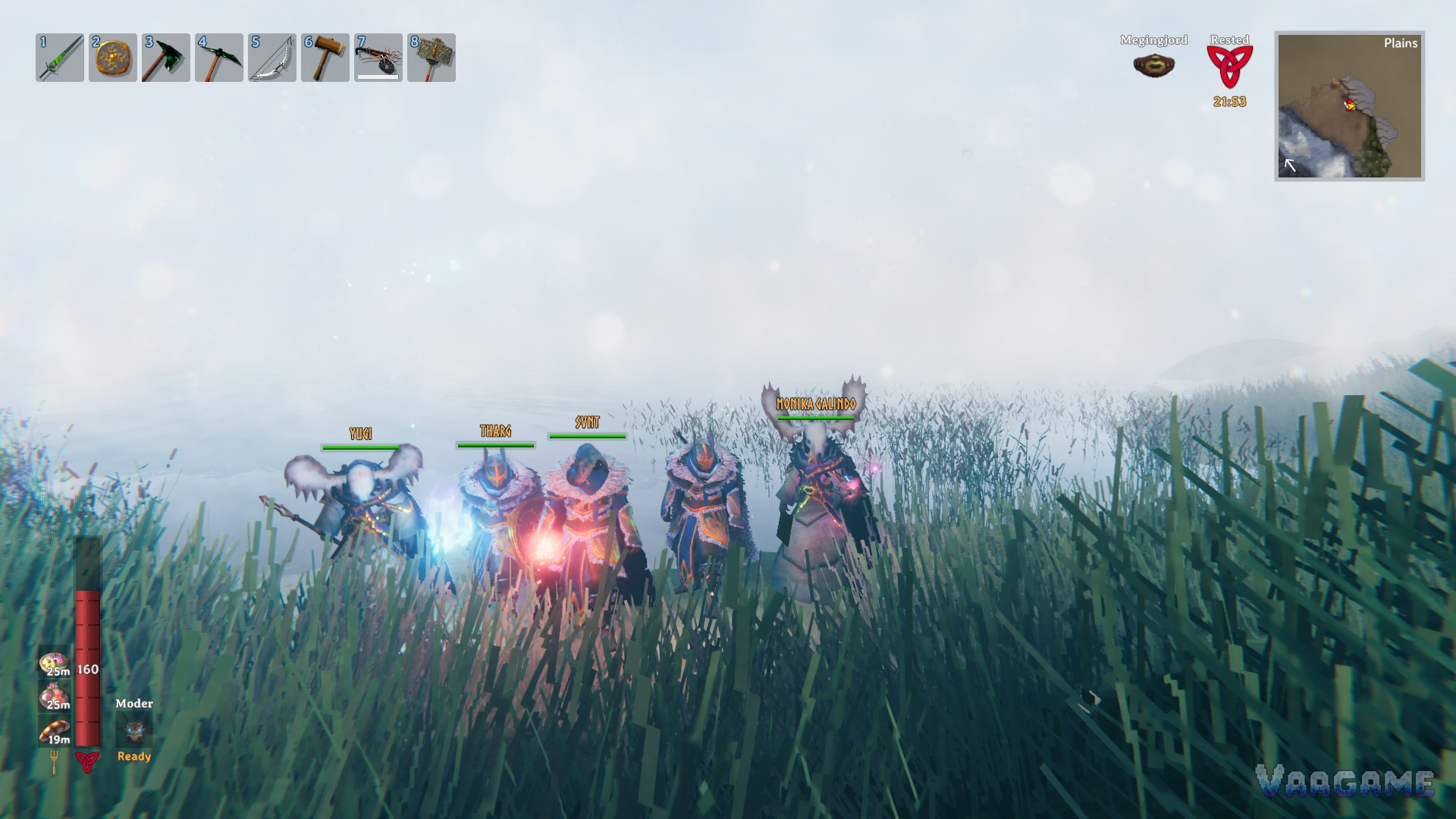
A peer-hosted Valheim world only exists while its host is online. A dedicated server fixes that: the world stays up, your group logs in whenever they want, and since 1.0, PC, Xbox, PlayStation 5, and Switch 2 players can share the same world. This guide walks you through choosing, setting up, and keeping a server alive, including the 1.0 save changes that catch returning hosts by surprise.
First, choose how your group plays
Valheim supports up to 10 players in one world, and there are three ways to host them. Peer hosting from inside the game is free and takes seconds, but the world closes when the host logs out, and console players cannot join it. A dedicated server runs on its own machine or rented box, stays online around the clock, and is the only setup that gives console players a persistent home. Renting removes the networking work; self-hosting costs almost nothing if you already have a spare machine, but you become the person who fixes it at midnight.
Swipe horizontally to view all columns.
| Option | Best for | Catch |
|---|---|---|
Peer hosting in game | One evening sessions, PC only | World closes when the host leaves |
Rented dedicated server | Mixed PC and console groups, no hassle | Monthly cost, panel instead of files |
Self-hosted dedicated server | Spare PC owners, full control | You handle ports, updates, backups |
Pick by one question: does anyone in the group play on console, or play at hours when you do not? If the answer is yes, you want a dedicated server. If everyone is on PC and you always play together, peer hosting is fine and this guide will still help you move the world later.
Self-host on Windows, step by step
The dedicated server is a separate Steam tool, app 896660, and it downloads anonymously, so no extra game purchase is needed. Install it through the Steam client library tools or with SteamCMD. Inside its folder you will find start_headless_server.bat. Copy that file first and edit your copy, because the original is overwritten every time the server updates, and your settings would vanish with it.
Install the Valheim Dedicated Server tool, app 896660.
Copy start_headless_server.bat to a new file, for example start-my-server.bat.
Edit your copy: set a server name, a world name, and a password of at least 5 characters that does not contain the server name or the world name, or the server will refuse to start.
Decide on crossplay now, not later: add -crossplay if any console or Game Pass player will ever join. Switching backends later means handing out a new way to connect.
Start the server, watch the log until it reports the world as active, then join it yourself before inviting anyone else.
Self-host on Linux with SteamCMD
On Linux the same server app installs through SteamCMD with an anonymous login. Point the install at its own folder, validate once, and run valheim_server.x86_64 with the same flags as the Windows start line. If you want crossplay, install libpulse-dev, libatomic1, and libc6 first: without them the server starts but PlayFab registration fails, and no join code ever appears in the log. That missing-code symptom is the classic sign of skipped Linux libraries.
Install with: steamcmd +force_install_dir /path/to/valheim +login anonymous +app_update 896660 validate +quit
For crossplay, install libpulse-dev, libatomic1, and libc6 through your distribution package manager before the first start.
Consider a systemd service or a scheduled task so the server restarts itself after a reboot or a crash.
The start line, flag by flag
Valheim has no settings file. Everything about a server lives on its start line, plus three small text files covered below. A complete start line looks like this: valheim_server.exe -nographics -batchmode -name My Server -port 2456 -world Midgard -password vikings -public 1 -crossplay. Every flag in the table below is optional except the name, world, and password.
Swipe horizontally to view all columns.
| Flag | What it does | Default or note |
|---|---|---|
-name | Name shown in the server browser | Required |
-port 2456 | Game port; the server also uses port + 1 for queries | 2456, UDP |
-world | World to load; created on first run if missing | Required |
-password | Join password | At least 5 characters |
-public 1 or 0 | List in the community browser or hide the server | 1 lists, 0 hides |
-crossplay | PlayFab relay backend: console players and join codes | Off unless added |
-savedir | Where worlds and permission files live | Game default save folder |
-saveinterval | Seconds between automatic world saves | 1800 seconds |
-backups | How many rolling world backups to keep | 4 |
-preset | World modifier preset: Normal, Casual, Easy, Hard, Hardcore, Immersive, or Hammer | None |
-modifier and -setkey | Change one world rule at a time, for example raids or portal rules | Repeatable |
Crossplay: how each platform actually joins
With -crossplay, the server talks through a PlayFab relay instead of direct connections. That is what lets PlayStation 5, Switch 2, Xbox, and Game Pass players into the same world as Steam players, and it is why no port forwarding is needed on a crossplay server: players connect with a six-digit join code printed in the server log, and the code changes every time the server restarts. Console players join by code only. PC players can use the code or the browser.
Without -crossplay, the server uses the Steam backend. Only Steam clients can join, by IP and port or through the browser, and direct connections need UDP 2456 and 2457 forwarded from the router to the server machine and allowed through its firewall. The Steam backend is also the only way to use a LAN or loopback address: the PlayFab relay cannot connect to a local or loopback IP, so a crossplay server is the wrong tool for a purely offline LAN night.
Crossplay on: share the six-digit join code plus the password. Re-share the code after every restart.
Crossplay off: share IP and port, for example 203.0.113.10:2456, and forward UDP 2456 and 2457.
Public servers appear in the community browser; private ones still work fine through code or direct IP.
1.0 saves: move a world, and back it up right
This is the section returning hosts get wrong. Since 1.0, each world is a folder, not two files. Under worlds_local you will find a folder named after the world, holding a _main.db2 and _main.fwl2 pair plus a set of chunk files. The whole folder is the world: copy all of it, never individual files out of it. A world last saved before 1.0 is two files instead, WorldName.db and WorldName.fwl, and they always travel together. Old worlds carry over into 1.0, and Deep North terrain generates in regions of the map that have not been explored yet, so you do not need a fresh world to see the finale.
Stop the game or the old server before copying anything. A world copied mid-save can come out half-written.
On Windows, player worlds live under %USERPROFILE%\AppData\LocalLow\IronGate\Valheim\worlds_local. On Linux and Mac, under ~/.config/unity3d/IronGate/Valheim/worlds_local. A dedicated server uses its -savedir folder instead.
Point the server world flag at the world name, start it once, and confirm the world loads before telling the group the move is done.
Back up the whole world folder, not just the two main files, and keep at least one backup somewhere other than the server machine.
Admin, permitted, and banned lists do not travel with the world. They are separate text files next to the world folder, and a new server starts with empty ones.
Admins, bans, and the whitelist trap
Three plain text files in the save directory control access, one player ID per line, in Platform_ID format such as Steam_76561197960287930. Admins get console commands including kick, ban, unban, and save. The whitelist is the trap: the moment permittedlist.txt has any entry at all, everyone not on it is locked out. Leave that file empty unless you truly want an invite-only server, and restart the server after editing any of the three files.
adminlist.txt: who can use admin commands.
bannedlist.txt: who is blocked from joining.
permittedlist.txt: the whitelist. Any entry locks out everyone else.
Admins open the in-game console with F5, but the client needs -console in its Steam launch options first.
Find a player ID from the server log or the in-game F2 panel. IDs are case sensitive.
World modifiers live in the world, not the server
World modifiers change the rules of one world, and they are saved in that world, so they follow it wherever it is loaded. Set them from the world settings screen in game, on the start line with -preset, -modifier, and -setkey, or live on a running server with admin commands. This matters for groups that move worlds: a casual-rules world stays casual on its new server, and a hardcore-rules world stays hardcore. Agree on the rules before the first boss, because changing them mid-campaign is a group argument waiting to happen.
Fix the ten problems first
Version mismatch on join: update the server before players update their game. A client on 1.0 cannot join a server still on the previous build.
Server refuses to start: check the password. It needs at least 5 characters and must not contain the server name or the world name.
Friends cannot join a non-crossplay server: forward UDP 2456 and 2457 on the router and allow them through the server firewall.
No join code in the log on Linux: install libpulse-dev, libatomic1, and libc6, then restart.
Join code does not work: it changes on every restart. Send the fresh code, not yesterday code.
Console players cannot join: the server must run with -crossplay. A Steam-backend server accepts Steam clients only.
LAN address does not work with crossplay: the PlayFab relay cannot use local or loopback IPs. Drop -crossplay for a LAN-only server.
Nobody can join at all: check permittedlist.txt. One entry turns the server invite-only.
World missing after a move: the -world flag must match the world folder name exactly, and for a 1.0 world the whole folder must be present.
Progress rolled back: check that backups exist and that -savedir points where you think it does. A server writing to a surprise folder is a classic self-host mistake.
Running a server people stay on
The technical setup is the easy half. Servers die from social causes: one player rushes bosses while others are still in the Meadows, loot arguments, or a world that silently stops being backed up. Write three rules down before launch: who can build where, whether boss fights wait for the group, and how often the world is backed up off the machine. Keep the password out of public channels, keep a second admin so one absence does not strand the group, and update on a schedule the group knows about instead of mid-session.
One last note on MODs. The 1.0 engine upgrade left most MODs needing a rebuild, and MOD compatibility is a moving target right now. This guide is deliberately vanilla: a MOD list that works today can break on the next server update, and a MODded server forces every player to match the same list. If your group wants MODs, treat that as a separate decision, check compatibility at the time, and keep a vanilla backup of the world before adding anything.