

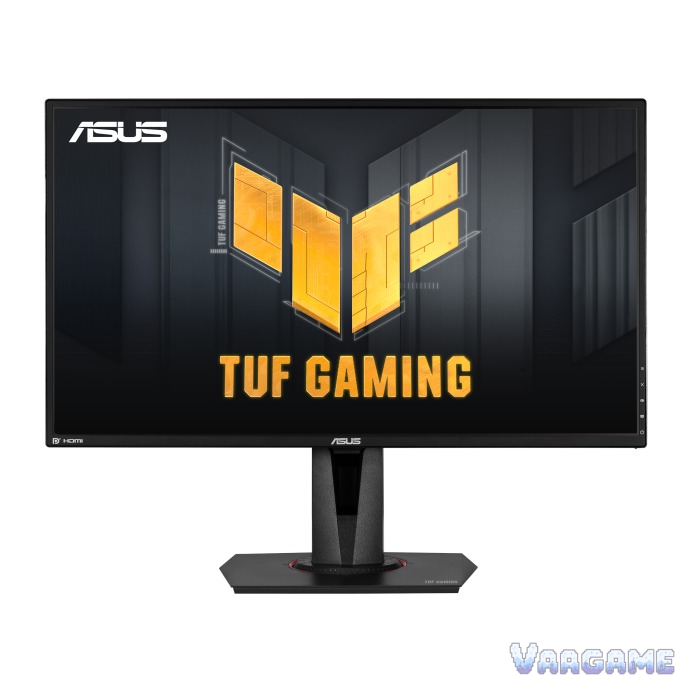
At $234.00, the ASUS TUF Gaming VG27AQ is worth buying for exactly one kind of buyer: a 1440p PC gamer who connects over DisplayPort and will tune the overdrive setting by hand. For everyone else, the same monitor is a pass, because its HDR badge is not a real HDR experience and its variable-refresh behaviour is not set-and-forget. What the one right buyer gets is a 27-inch QHD IPS panel with a 165 Hz overclock, G-SYNC Compatible adaptive sync, and the ELMB Sync blur-reduction trick that made this monitor famous in 2019, at a tracker price well below the $359.15 tracker average, though not below the $198.55 tracker low. Buy it for the panel and the price; do not buy it for the HDR badge.
Method note: this is a reputation review, not a hands-on test. It synthesizes a pricehistory.app tracker sample of 4,763 ratings at 9.2 out of 10 for the VG27AQ listing, independent review coverage from TechSpot, bit-tech, RTINGS (8.1 out of 10 as summarized in a price-comparison listing), KitGuru (8 out of 10), and DisplayNinja, and a Blur Busters forum thread in which owners and enthusiasts argue over this monitor overdrive and ELMB Sync behaviour. The tracker 9.2 figure is a tracker-converted score, not an Amazon star rating, and it is never added to any other count. No VG27AQ-specific Reddit main thread was verified for this review, and that gap is stated plainly rather than filled with threads about the VG27AQ1A, VG27AQ3A, or other TUF models. Model confusion is the main trap in this family, so every fact below is for the original VG27AQ (165 Hz, DisplayPort 1.2, HDMI 2.0) only.
This guide contains affiliate links. If you buy through them, Vaagame may earn a commission at no extra cost to you.
Quick answer
Verdict: buy at $234 if you game at 1440p over DisplayPort and will tune Trace Free by hand; skip it if you want real HDR or a zero-tuning monitor
Praised: the 1440p 165 Hz sweet spot, IPS colour and viewing angles, low input lag, ELMB plus adaptive sync at the same time, and a fully adjustable stand
Complained about: overdrive that must be retuned as frame rate changes, overshoot in ELMB Sync, HDR10 that is a badge rather than an experience, and no USB hub
Setup reality: use DisplayPort, switch on the 165 Hz overclock in the menu, turn on G-SYNC in the GPU panel, and start Trace Free at 60
Price rule: $234 is well below the $359.15 tracker average but not the $198.55 tracker low; under $210 is the patient price, over $280 is a pass
At a glance
Product: ASUS TUF Gaming VG27AQ, 27-inch QHD gaming monitor (original VG27AQ, not VG27AQ1A, VG27AQ3A, or VG27AQL1A)
Panel: 27-inch IPS, 2560 x 1440, 100 percent sRGB, 350 cd/m2 typical brightness, 1000:1 typical contrast, 178-degree viewing angles (ASUS official)
Speed: 144 Hz native, up to 165 Hz over DisplayPort only, 1 ms MPRT, ELMB Sync, G-SYNC Compatible and Adaptive-Sync
Ports: DisplayPort 1.2 x 1, HDMI 2.0 x 2, earphone jack, 2W x 2 speakers; no USB hub, no USB-C, no HDMI 2.1
Stand: tilt plus 33 to minus 5 degrees, swivel plus or minus 90 degrees, pivot 0 to 90 degrees counterclockwise, height 0 to 130 mm, VESA 100 x 100 mm
Owner sample: 4,763 tracker ratings at 9.2 out of 10 (pricehistory.app, tracker-converted, not an Amazon star rating) plus TechSpot, bit-tech, RTINGS, KitGuru, DisplayNinja reviews and a Blur Busters forum thread
Price (October 30, 2026, tracker-checked): $234.00 in stock, $359.15 tracker average, $198.55 tracker low (July 10, 2025), $249.00 tracker list price
Last verified: October 30, 2026
Specifications (ASUS official)
Swipe horizontally to view all columns.
| Spec | VG27AQ |
|---|---|
Panel and resolution | 27-inch IPS, 2560 x 1440 (QHD), 16:9, anti-glare, 0.233 mm pixel pitch |
Refresh rate | 144 Hz native, up to 165 Hz max (DisplayPort only; HDMI 48 to 144 Hz, DisplayPort 48 to 165 Hz VRR range) |
Response time | 1 ms MPRT with ELMB; Trace Free overdrive in six steps from 0 to 100 |
Colour and brightness | 100 percent sRGB, 16.7M colours, 350 cd/m2 typical brightness, 1000:1 typical contrast, HDR10 support |
Sync | G-SYNC Compatible, Adaptive-Sync, ELMB Sync (ELMB plus variable refresh at the same time) |
Ports and audio | DisplayPort 1.2 x 1, HDMI 2.0 x 2, earphone jack, 2W x 2 speakers |
Stand and mounting | Tilt, swivel, pivot, height 0 to 130 mm; VESA 100 x 100 mm |
Size and weight | 62.00 x 50.70 x 21.10 cm with stand, 5.8 kg with stand, 3.5 kg without stand |
Power | Under 27W in use, under 0.5W in power-saving and power-off modes |
1. The verdict: a proven 1440p panel whose price is right and whose tuning is not optional
Buy the VG27AQ if your PC can hold roughly 100 frames per second or more at 1440p, you will connect it over DisplayPort, and you accept one afternoon of menu work as part of the price. What you get for $234 is the combination that made this monitor a long-running recommendation: a 27-inch 1440p IPS panel at the size and sharpness sweet spot, a 165 Hz ceiling, adaptive sync that works with both NVIDIA and AMD cards, and a stand that actually adjusts in every direction. Independent reviews agree on the core: bit-tech measured excellent colour accuracy out of the box with an average delta E of just 0.64 and a white point close to the 6500K target, TechSpot found low input lag, and RTINGS scored it 8.1 out of 10 as a great monitor for most uses. Skip it if you play mostly at 60 frames per second, because this monitor overdrive story gets worse, not better, as frame rate falls, and skip it if HDR is a buying reason: at 350 nits with no local dimming, HDR10 here changes the signal the monitor accepts, not the picture you actually see. The honest middle case is a player upgrading from 1080p 60 Hz or 144 Hz: the jump in sharpness and smoothness is real, and the tuning below is a one-time cost, not a weekly chore, as long as your frame rate stays in one band.
For 1440p PC gamers at 100-plus frames per second: this is the audience the monitor was built for
For 1080p upgraders: the sharpness and smoothness jump is the single biggest feel change in this review
For dual-purpose desk setups: IPS colour, viewing angles, and pivot make it a credible work screen too, with limits covered in section 5
Not for HDR buyers: 350 nits and no local dimming mean HDR10 is a badge, not an experience
Not for console-only players: HDMI caps at 144 Hz at this resolution, and the 165 Hz overclock needs DisplayPort
Not for set-and-forget buyers: variable-refresh players must retune overdrive when their frame rate band changes
2. What owners and reviewers keep praising
The size and resolution combination is the praise that never goes away. At 27 inches and 1440p, text and game detail are sharp without the scaling headaches of 4K, and reviewers from bit-tech to DisplayNinja call this the sweet spot for gaming right now. Colour is the second praise, and it is measured rather than asserted: bit-tech found the panel covering just over 100 percent of sRGB with a 0.64 average delta E, and a white point of 5900K to 6000K at every brightness level tested, respectably close to the 6500K target, so most buyers do not need a calibrator to get a good-looking picture. Motion is the third praise, with a caveat that belongs in the next section: at a fixed 144 or 165 Hz with the right Trace Free level, TechSpot measured a 5.35 ms average grey-to-grey response at Trace Free 80 with 77 percent refresh-rate compliance, and owners describe fast shooters as smooth and responsive. ELMB Sync is the feature praise: when it launched, this was the first implementation that let backlight strobing run together with variable refresh instead of forcing a choice between blur reduction and tear-free play, and reviewers still cite it as the reason this old model stayed relevant. The stand is the practical praise: full tilt, swivel, pivot, and 130 mm of height adjustment, plus VESA mounting, mean most buyers never need an aftermarket arm. Finally, the speakers and the small extras get quiet praise as conveniences: 2W speakers are not a sound system, but they cover voice chat and videos without a second purchase, and Shadow Boost, GameVisual presets, and a crosshair overlay are genuinely useful in dark maps.
3. What owners and reviewers keep complaining about
Overdrive tuning is the complaint that defines this monitor. The default Trace Free 60 is decent but not great at 165 Hz, with TechSpot measuring a 6.82 ms average grey-to-grey response and a hint of dark-level smearing, while Trace Free 80 improves the average to 5.35 ms at the cost of overshoot, and Trace Free 100 falls apart into heavy overshoot that reviewers say not to use. The deeper problem is that the right level changes with frame rate: DisplayNinja recommends 60 at a fixed 144 to 165 Hz, 40 at around 100 frames per second, and 0 at around 60 frames per second, so a player whose frame rate swings between story games and shooters must keep retuning, because no single overdrive setting is right across the whole range. ELMB Sync draws the sharpest forum criticism: a Blur Busters thread calls its crosstalk and overshoot too aggressive, says the overdrive is effectively stuck at a setting that produces too many artefacts, and argues the small motion-clarity gain is not worth it, while TechSpot notes ELMB Sync also dims the picture. HDR is the second standing complaint: reviewers call the HDR10 support meaningless in practice, because 350 nits, a 1000:1 contrast ratio, and no local dimming cannot produce real HDR highlights or deep blacks, and bit-tech warns explicitly not to confuse this panel with a wider-gamut or true HDR screen. Panel uniformity and bleed are the lottery complaint: bit-tech found a slight left-to-right colour shift on static images on its sample, said backlight bleed was not a problem on that sample, and still called uniformity the main measurement letdown, while a drawbacks roundup notes other users reporting bleed and uniformity problems, which is exactly the panel-lottery pattern a buyer should test for in the return window. The port selection is the age complaint: DisplayPort 1.2 only, HDMI 2.0 only, no USB hub, and no USB-C, so a modern laptop dock setup needs adapters and a separate hub. The speakers are the smallest recurring complaint: usable, but thin, and several owner summaries treat them as a backup rather than a feature.
4. Setup and software: what owners actually go through
There is no ASUS software to install, which is good news, and the fiddling is all in the on-screen menu and the GPU control panel, which is where owners actually spend their first hour. Step one is the cable: use the included DisplayPort cable, because HDMI at this resolution stops at 144 Hz and cannot reach 165 Hz at all. Step two is the overclock: open the monitor menu, switch on the overclocking option, and only then select 165 Hz in Windows or the NVIDIA control panel, because the 165 Hz option does not appear until the menu toggle is on, and ASUS itself notes that overclock performance depends on the graphics card and content. Step three is adaptive sync: enable G-SYNC in the NVIDIA control panel or FreeSync on AMD, confirm the monitor variable-refresh range shows 48 to 165 Hz over DisplayPort, and test with a game rather than the desktop, since tearing only shows up in motion. Step four is the tuning pass owners actually repeat: start at Trace Free 60, play a fast shooter, and only move to 80 if ghosting is still visible, then drop back to 40 when a story game settles around 100 frames per second, and to 0 around 60 frames per second, because a setting that is clean at 165 Hz overshoots badly at 60 Hz. Step five is ELMB Sync, and this is where owners either commit or walk away: turn it on together with adaptive sync, expect brightness to fall by roughly 15 to 20 percent, and keep it only if motion looks cleaner without obvious double images, since it works best when frame rate stays above 100 to 120 frames per second and loses its benefit below that. Step six is colour: leave GameVisual on Racing or sRGB for games, check for a green tint on grey screens, and adjust the RGB sliders if one appears, since review coverage notes tint variation between units. If tearing persists after all six steps, the fault is usually a wrong cable, a missed overclock toggle, or adaptive sync disabled in the GPU panel, in that order, not a defective panel. If backlight bleed or a dead pixel is visible on a black screen in a dark room in the first week, that is an exchange case, not a settings problem to keep grinding on.
5. Second use: a credible work screen, with two limits
This section exists because a monitor is not only a game screen, and the VG27AQ second use is good enough to judge on its own rather than as an afterthought. For office work, documents, and photo browsing, the case is strong: 1440p at 27 inches gives roughly 77 percent more on-screen desktop space than 1080p by ASUS own comparison, IPS viewing angles mean a second person can read the screen without colour shift, pivot to portrait suits long documents and code, and the out-of-box colour accuracy measured by bit-tech is good enough for casual photo work without a calibrator. The two limits are equally concrete. First, the 1000:1 contrast ratio and the uniformity shift bit-tech measured mean dark-room movie watching and critical colour work will show the panel weaknesses that games hide: blacks look grey in a dark room, and a static document can reveal the left-to-right shift that a moving game never shows. Second, the port selection is a work-desk tax: no USB-C video input and no USB hub means a laptop setup needs a separate dock or hub, and the 2W speakers will not carry a meeting room. So the honest second-use verdict is: a good single-monitor desk for one person doing games plus general work, and a poor choice as a shared review screen or a laptop-dock centrepiece.
6. Hidden-concern check: variable-refresh overdrive, and what ASUS actually answers
The specific problem: at variable refresh rates, the single Trace Free overdrive setting cannot stay correct across the frame-rate range, so a setting that is clean at 165 Hz overshoots at 60 Hz, and ELMB Sync adds its own crosstalk and brightness cost on top. The official response: ASUS answers this at the feature level, not with a fix, by marketing ELMB Sync as blur reduction plus adaptive sync together and by giving owners six Trace Free levels to choose from, but no firmware update or automatic overdrive adjustment for this model was found in this review, and the menu buries Trace Free on the second page of a settings panel, which TechSpot calls out by name. The scope: this affects variable-refresh players whose frame rate swings widely, such as a player alternating between a locked 165 Hz shooter and a 60 frame-per-second story game; it does not affect a player who stays at one fixed refresh rate with one Trace Free level, and it does not make the monitor defective. The honest reading is that the VG27AQ asks its owner to do the job a newer monitor does automatically, and the $234 price is, in part, payment for accepting that job. Buyers who will not do it should buy a newer Fast IPS model with adaptive overdrive instead, even at a higher price.
7. Common issues and what to do about them
Swipe horizontally to view all columns.
| Issue | What owners and reviewers report and what to do |
|---|---|
165 Hz option does not appear | The overclock toggle in the monitor menu must be on first, and the connection must be DisplayPort. HDMI at this resolution caps at 144 Hz. |
Ghosting or inverse ghosting | Wrong Trace Free level for the current frame rate. Use 60 at 144 to 165 Hz, 40 around 100 frames per second, and 0 around 60 frames per second. Do not use 100. |
Tearing despite adaptive sync | Check the cable, the menu overclock toggle, and the GPU panel setting in that order. Test in a game, not on the desktop. |
ELMB Sync looks dim or shows double images | Expected: brightness falls roughly 15 to 20 percent, and the mode works best above 100 to 120 frames per second. Turn it off below that range. |
HDR looks washed out or no different | Expected on this panel: 350 nits and no local dimming cannot show real HDR. Use SDR GameVisual modes for games and do not buy this monitor for HDR. |
Backlight bleed or a dead pixel in week one | Panel-lottery case. Test on a black screen in a dark room inside the return window and exchange the unit; it is not a settings problem. |
Green tint on grey screens | Reported as unit variation in review coverage. Adjust the RGB sliders in the menu; if tint cannot be corrected, exchange the unit. |
8. How it stacks up against nearby monitors
Swipe horizontally to view all columns.
| Option | What it offers | Trade-off |
|---|---|---|
ASUS TUF VG27AQ (this review) | 27-inch QHD IPS, 165 Hz over DisplayPort, ELMB Sync, tracker price $234.00 | Manual overdrive tuning, HDR in name only, DisplayPort 1.2 and HDMI 2.0 only |
ASUS TUF VG27AQ1A | Same 27-inch QHD idea at 170 Hz, tracker price $229.00, tracker average $285.02 | A different model with its own listing, price, and ratings; do not carry VG27AQ reviews across to it |
LG UltraGear 27GS93QE-B OLED | 27-inch QHD OLED at 240 Hz, tracker low $499.99, covered in our earlier reputation review | Roughly double the VG27AQ price for true blacks and a faster panel |
Samsung Odyssey Neo G9 57-inch | Dual 4K ultrawide, tracker price $1,449.99, covered in our earlier reputation review | Six times the VG27AQ price and a desk-dominating 57 inches, for a different kind of buyer entirely |
A newer Fast IPS 1440p monitor | Adaptive overdrive, HDMI 2.1, USB-C, and a USB hub on current models | Higher price than $234 for convenience the VG27AQ asks its owner to supply by hand |
9. Price and buying advice
At the October 30, 2026 tracker snapshot, this is a fair price, not a historic deal: $234.00 in stock, against a $359.15 tracker average, a $198.55 tracker low from July 10, 2025, and a $249.00 tracker list price. Read the average with care, because it is pulled up by launch-era prices from 2020, when this monitor sold at $429 and above, while the 2026 tracker history mostly shows $209 to $280, with the latest drop from $332.91 to $234.00 on October 12,
2026. That makes $234 a reasonable buy zone rather than a price to chase or a price to fear: it is well below the long-run average, above the best price this monitor has seen, and inside the band it has visited repeatedly this year. The buying rule follows from that band: under $210, buy without hesitation if the rest of this review fits you; at $210 to $250, buy if you need a monitor now; over $280, pass and wait, or step up to a newer Fast IPS model that tunes overdrive for you. Do not confuse this listing with the VG27AQ1A at $229.00 or the VG27AQ3A at $179.00, which are different models with different prices and ratings, and do not pay a VG27AQ1A price for a VG27AQ box, or the reverse.
10. Rating-bias check: why a 9.2 should not be read as a star rating
This review does not award its own score, but it still has to say why the headline number flatters the monitor. The 9.2 out of 10 is a tracker-converted figure from 4,763 ratings, not an Amazon star average, and tracker conversions compress a real rating distribution into a single neat number. The owner pool also skews enthusiastic: this monitor has sold since 2019, its long life means many ratings come from buyers who sought it out as a known recommendation, and the most detailed criticism comes from reviewers and forum enthusiasts rather than from casual buyers. The hesitation that keeps this review honest is the overdrive problem: even if every praise point above is true, a monitor that needs its owner to retune overdrive by frame-rate band is a worse everyday buy than its own reputation suggests for a player who will not do that tuning. That is why the verdict is tied to a buyer type and a price, not to a score: for a tuner at $234, the reputation holds; for a set-and-forget buyer at any price, it does not.
FAQ
Can I get 165 Hz over HDMI?
No. At 2560 x 1440, HDMI on this monitor caps at 144 Hz, and the 165 Hz overclock is a DisplayPort-only option that must first be switched on in the monitor menu. If your setup is HDMI-only, treat this as a 144 Hz monitor.
What Trace Free level should I use?
Start at 60 for fixed 144 to 165 Hz play. Move to 80 only if ghosting is still visible at 165 Hz, drop to 40 around 100 frames per second, and to 0 around 60 frames per second. Do not use 100: reviewers found heavy overshoot at that level.
Is the HDR any good?
No, in practice. HDR10 support means the monitor accepts an HDR signal, but 350 nits, a 1000:1 contrast ratio, and no local dimming cannot show real HDR highlights or deep blacks. Buy this monitor for its SDR gaming picture, not for HDR.
Is the VG27AQ the same as the VG27AQ1A?
No. The VG27AQ is the original 165 Hz model with DisplayPort 1.2 and HDMI 2.0. The VG27AQ1A is a different 170 Hz model with its own listing, its own $229.00 tracker price, and its own ratings. Check the box and the listing model name before paying, and do not carry reviews, prices, or ratings across the two.
Should I buy it at $234 or wait?
Buy at $234 if you need a monitor now and the tuning in section 4 fits you, because $234 sits inside the band this monitor has visited repeatedly in
2026. Wait for under $210 if you are not in a hurry: the tracker low is $198.55, and this monitor has visited the low $200s before.
Related guides
LG UltraGear 27GS93QE-B OLED Gaming Monitor Reputation Review 2026
Samsung Odyssey Neo G9 57-inch Gaming Monitor Reputation Review 2026